

You can open a Shopify account in a few minutes. But opening an account and building a store that actually sells are two different things. A store with no payment method configured, no shipping zones, missing legal pages or no plan for invoicing gets stuck at the very first order. In this guide we answer how to set up a Shopify store step by step, from the first setting to the first order, through the eyes of a business selling from Turkey.
We built the guide like a hands-on lesson. First we explain what Shopify is and what to watch out for when you use it in Turkey, then we set the store up in eight steps. Each step ends with a short checkpoint that tells you the step is done. At the end you will find advice on choosing themes and apps, the integrations you need, the most common mistakes and a final pre-launch checklist.
What Is Shopify?
Shopify is a subscription-based cloud e-commerce platform that businesses use to build and run their own online stores. Shopify takes care of the technical foundation, including hosting, security certificates, platform updates and the checkout, so you can focus on your products, your design and your sales.
Shopify's strength is its ecosystem. Themes control how the store looks; they are made of sections you can edit without code and can be developed further with Shopify's template language, Liquid. For almost any feature you want to add, there is a ready-made app in the app store. Selling to several countries, multiple languages and currencies, wholesale setups and in-person sales can all be run from the same admin.
Shopify is a platform, not a "set it and forget it" system. A store's success depends on its product structure, design, speed, search engine visibility and how well it talks to the rest of the company's systems.
Recommended reading: Our Shopify services: design, setup, custom apps and integrations
Can You Use Shopify in Turkey?
Yes. You can open a Shopify store from Turkey and sell both domestically and abroad. But there are four Turkey-specific topics to understand before you start: payments, e-invoicing, shipping and legal texts.
| Topic | Situation | Solution |
|---|---|---|
| Payments | Shopify's own payment system, Shopify Payments, is not offered in Turkey | Connect a payment provider that works with Shopify; add the extra transaction fee Shopify charges for third-party providers to your costs |
| E-invoice and e-archive invoice | Shopify does not send invoices directly to Turkey's electronic invoicing system | Set up an integration that creates the e-invoice or e-archive invoice from each order |
| Domestic shipping | Ready-made connections to Turkish carriers are not always available | Automate shipment creation, labels and tracking numbers with a shipping integration |
| Legal texts | A distance sales contract, a pre-information form and personal data (KVKK) notices are required | Prepare the texts with a legal adviser and link them to your pages and the checkout |
When these four topics are planned from the start, Shopify is a strong platform for brands selling from Turkey. When they are not, orders end up being invoiced by hand in the first weeks, shipping labels are typed one by one and the store starts eating the team's time.
What Should You Prepare Before Setting Up a Shopify Store?
Preparing product data, images, company details, payment and shipping agreements and legal texts before you start turns days of setup into hours. Don't log into the admin until you have completed this list:
- Company details: Legal name, tax office and number, address, contact email and phone.
- Product list: Product name, description, price, SKU, barcode, weight and variants such as color and size. The easiest route is a spreadsheet that follows Shopify's import template.
- Images: Photos for every product, in the same aspect ratio, on a clean background and at a sufficient resolution.
- Payment provider: A contract and account details with a provider that works with Shopify.
- Shipping agreement: Your carrier, its rates by weight or volume, and your free-shipping threshold.
- Legal texts: Distance sales contract, pre-information form, return and cancellation terms, privacy and personal data notice, cookie policy.
- Domain: A domain registered in the company's name.
How Do You Set Up a Shopify Store Step by Step?
A Shopify store is set up in eight steps: store settings, payments, taxes, shipping, products and collections, theme, legal pages, and finally domain and a test order. Following this order prevents one setting from undoing another.
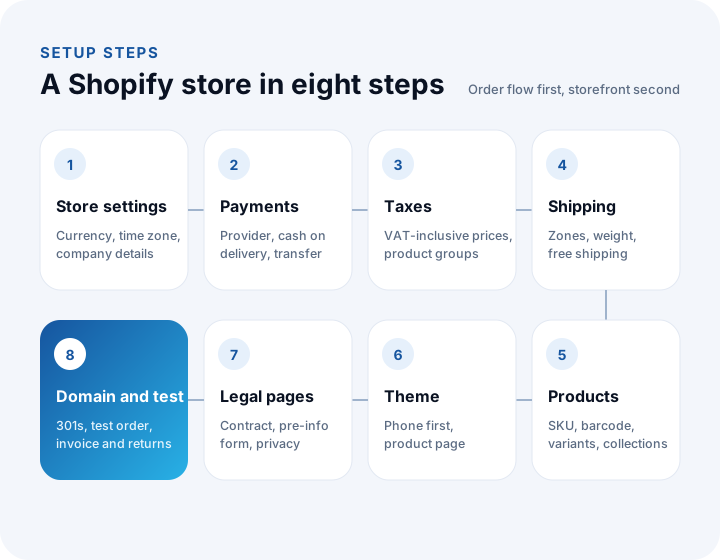
Step 1: Configure your store settings
In Settings, enter your store name, company details, contact email, store currency and time zone. Changing the store currency after orders start coming in is cumbersome, so make this decision first. Create staff accounts at this stage too, and give each person only the permissions they need.
Checkpoint: The store currency is set to Turkish lira (or your selling currency), the time zone is correct, and the company details match your invoices exactly.
Step 2: Connect your payment provider
In the payments settings, add a payment provider that works with Shopify and enter your account details. If you will offer cash on delivery or bank transfer, set them up as manual payment methods. Check which methods appear at checkout and in what order.
Checkpoint: The payment provider accepted a successful payment in test mode, and the instructions for cash on delivery or bank transfer are written in language your customers will understand.
Step 3: Set up taxes
Consumer prices in Turkey include VAT. In the tax settings, specify that your prices include tax and set the VAT rates that apply to your product groups. If some products are taxed at a different rate, manage them as separate groups. Confirm which rate applies to which product with your accountant.
Checkpoint: In a test cart, the product price, VAT amount and total match the figures on the invoice you will issue.
Step 4: Define shipping zones and rates
In the shipping and delivery settings, add Turkey as a shipping zone. Set rates by weight or by order value, and add your free-shipping threshold as a separate rule. If you use weight-based rates, every product's weight must be entered correctly. If you will sell abroad, create separate rules for each country or region.
Checkpoint: Three test carts, one light, one heavy and one above the free-shipping threshold, all show the correct shipping rate.
Step 5: Add products and collections
Upload products one by one or in bulk with the import template. For each product, enter the title, description, images, price, SKU, barcode, stock quantity and variants. Group products into collections, which can be built manually or automatically from conditions such as tags, price or product type. Write the search engine titles and descriptions for product and collection pages at this stage as well.
Checkpoint: Every SKU is unique, variants are correct and every product is in at least one collection.
Step 6: Choose and customize your theme
The theme is your shop window. Choose one that suits your number of products, your category structure and your brand's look, then build the home, collection, product and cart pages in the theme editor. Check the phone view first; that is where most visitors come from. Needs that a ready-made theme can't meet can be solved by developing the theme code or designing a custom theme for your brand.
Checkpoint: On a phone, finding a product from the home page and adding it to the cart takes no more than three taps, and pages load quickly.
Step 7: Add legal pages and menus
Create pages for the distance sales contract, the pre-information form, return and cancellation terms, the privacy and personal data notice and the cookie policy. Link them from the footer menu and, where required, from the checkout. Make sure the company's legal name, address and contact details are visible on every page. Prepare the content of these texts with your legal adviser.
Checkpoint: Customers can reach the contract and pre-information form before completing payment.
Step 8: Connect your domain and place a test order
In the domain settings, connect your own domain and set it as the primary domain. If you are moving from another platform, set up permanent (301) redirects from old URLs to the new ones. Finally, place a full test order with a real product and verify payment, the order confirmation email, the invoice, the shipment and the return flow one by one.
Checkpoint: The test order went smoothly from payment to delivery notification, the invoice was issued correctly and the return flow worked.
Recommended reading: How to do SEO: a hands-on training guide
How Do You Choose a Shopify Theme: Ready-Made or Custom?
A ready-made theme is enough for stores with few products, a standard structure and a need to launch quickly; a custom theme is the better investment for brands that want to stand out, push speed and conversion to the limit or offer a distinctive product experience.
| Topic | Ready-made theme | Custom theme |
|---|---|---|
| Getting started | Fast; built in the theme editor | Needs design and development time |
| Brand differentiation | Looks similar to other stores using the same theme | Design unique to the brand |
| Speed | Can be weighed down by unused features | Only the code you need |
| Special requirements | Solved with apps, so the app count grows | Solved lightly inside the theme |
| Management | Sections in the theme editor | Editable sections in the theme editor |
How Do You Choose Shopify Apps?
Start every app decision with one question: is this feature really needed, and do the theme or Shopify's built-in features already cover it? Every app means a monthly cost and often extra code on your pages; unnecessary apps slow a store down.
- Built-in features first: Discount codes, automatic discounts, collection rules, basic reports and email notifications are part of Shopify itself.
- Read the reviews: Look at how often the app is updated, how fast support responds and what stores selling from your country say about it.
- Measure speed: Compare your store's load time on a phone before and after installing the app.
- What happens on uninstall? Some apps leave code behind in the theme after removal; learn the removal steps.
- One solution instead of several apps: If you have several related needs, a single custom app built for your store can be both lighter and cheaper.
Which Systems Should a Shopify Store Be Integrated With?
The integrations a Shopify store selling from Turkey needs most are e-invoicing, shipping, marketplaces and an ERP or accounting system. Without them, every order is entered into several systems by hand.
| Integration | What it does | What happens without it? |
|---|---|---|
| E-invoice and e-archive invoice | The invoice is created automatically when an order is confirmed and sent to the customer | Every order is invoiced by hand |
| Shipping | Shipment, label and tracking number are created automatically and added to the order | Labels are printed one by one from the carrier's portal |
| Marketplaces | Products, stock, prices and orders are managed from one place | A product sold out in one channel keeps selling in another |
| ERP and accounting | Stock and prices come from the ERP; orders flow into the ERP | Stock and orders are kept separately in two systems |
Recommended reading: What is API integration? Marketplace, shipping and e-invoice integrations
What Are the Most Common Mistakes When Setting Up a Shopify Store?
Most Shopify setup mistakes are made in settings and process, not in design. The most frequent ones are:
- Starting with design: Focusing on design before payments, taxes and shipping are set up leaves surprises for launch day.
- Underestimating payment costs: The provider's commission, Shopify's extra transaction fee and the subscription must be calculated together.
- Ignoring the invoicing flow: Without an e-invoice integration, keeping up with invoices during the first campaign becomes hard.
- Incomplete product data: Missing SKUs, barcodes and weights break shipping rates, marketplace integrations and stock tracking.
- App overload: Installing a separate app for every need slows the store down and inflates the monthly bill.
- Forgetting redirects: When moving from another platform, unredirected old URLs lose their search visibility.
- Skipping the test order: Payment, invoice, shipping and returns must be tested with a real order before launch.
Shopify or a Local E-Commerce Platform?
If selling abroad, a global app ecosystem and a multi-market setup are your priorities, Shopify is a strong choice; if you want payments, invoicing and shipping in Turkey to work out of the box, a local platform gives a faster start. Our own e-commerce platform Faprika has a page comparing the two options: Faprika or Shopify? (in Turkish).
The decision should be based not only on today's needs but on the sales channels and markets of the next few years. Whichever platform you choose, ERP, marketplace and shipping integrations are what really determine success.
Recommended reading: What is e-export and how do you start? A guide to selling online abroad
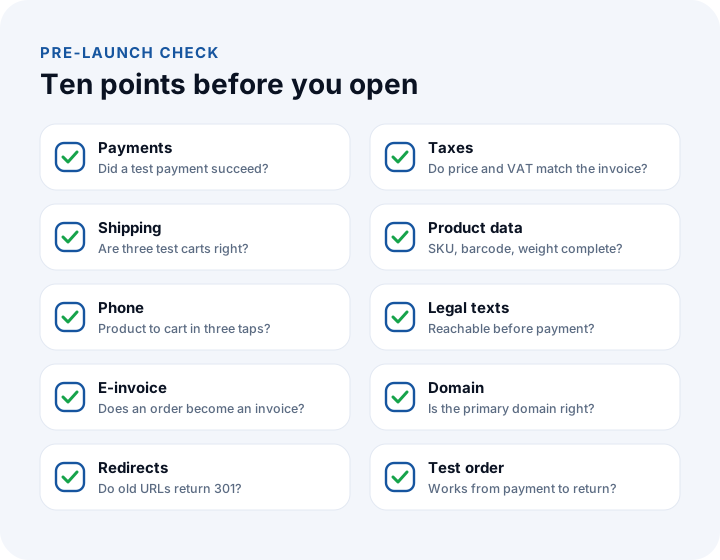
A Final Checklist Before You Launch
Before you take the store live, you should be able to tick every item below:
We recommend reading: What Is Shipping Integration and How Is It Done? A Guide to Shipments, Labels and Tracking for E-commerce
We recommend reading: How to Build an E-commerce Website: Platform, Legal Requirements, Cost and Break-Even Guide
Your Shopify Store with İnovabil
At İnovabil we approach Shopify stores in two layers. On the visible layer, we work on a theme designed for your brand, product and collection structure, SEO and conversion improvements. On the invisible layer, we set up e-invoicing, shipping, marketplace, ERP and accounting connections, and where ready-made apps fall short, we build custom apps for your store.
As the team behind Shopiwell, our Shopify Partner agency, and NetKasam, where our marketplace integrations run, we combine Shopify's global strength with the realities of selling from Turkey. Tell us in a few sentences about your products, sales channels and target markets, and we will prepare a Shopify roadmap tailored to you.
Frequently Asked Questions
How do you set up a Shopify store, and what are the steps?
A Shopify store is set up in eight steps: store settings, connecting a payment provider, tax settings, shipping zones and rates, products and collections, choosing and customizing a theme, legal pages and menus, and connecting a domain followed by a full test order.
Is Shopify Payments available in Turkey?
No, Shopify Payments is not offered in Turkey. Stores opened from Turkey connect a payment provider that works with Shopify. When a third-party provider is used, Shopify charges an extra transaction fee; the current rate depends on your plan and is listed on Shopify's pricing page.
Can Shopify issue Turkish e-invoices?
Shopify does not send invoices directly to Turkey's electronic invoicing system. An integration is set up to create e-invoices or e-archive invoices from orders; it can generate the invoice automatically when an order is confirmed and send it to the customer.
Can a Shopify store be integrated with marketplaces?
Yes. With a marketplace integration, products in Shopify are sent to marketplaces, and stock, prices and orders are synchronized from one place, so a product that sells out in one channel is also removed from the others.
Will we lose data when moving to Shopify from another platform?
Not if it is planned properly. Products, variants, images, customers and order history are migrated, permanent (301) redirects are set up from old URLs to new ones, and search visibility is monitored after launch.