

A dealer portal takes invoice PDFs, a support form takes screenshots, an application page takes ID scans. Any application that accepts files from users lets data into your system that you cannot trust. Secure file upload means validating a file's size, type, name and content; storing it somewhere safe; and serving it only to authorized people, and only for a short time. This guide is defensive: it does not describe attack techniques, it describes the design decisions that keep an upload feature sound.
All figures below are illustrative; they are not measurements from a real system or any provider's pricing.
Why Is File Upload a Separate Security Topic?
Because a file, unlike a text field, is both big and structured: it is a format that your application or the user's device will process. Most problems fall under the same six headings.
| Risk | What can happen | Core defense |
|---|---|---|
| Oversized file | Disk fills up, server slows down | Size limit and per-user quota |
| Extension and content mismatch | A file that looks like an image is something else | Verify content type on the server |
| File name containing a path | The file is written to an unexpected folder | Regenerate the name |
| Malicious content | The device of whoever opens the file is affected | Scanning and quarantine |
| Access to someone else's file | Changing an ID exposes another user's document | Object-level authorization |
| Guessable link | Sequential addresses are tried one by one | Random ID and signed, expiring link |
These controls belong to the application's overall security design. We covered the mindset in our secure software development guide and endpoint protection in our API security guide.
How Do You Design a Secure Upload Flow?
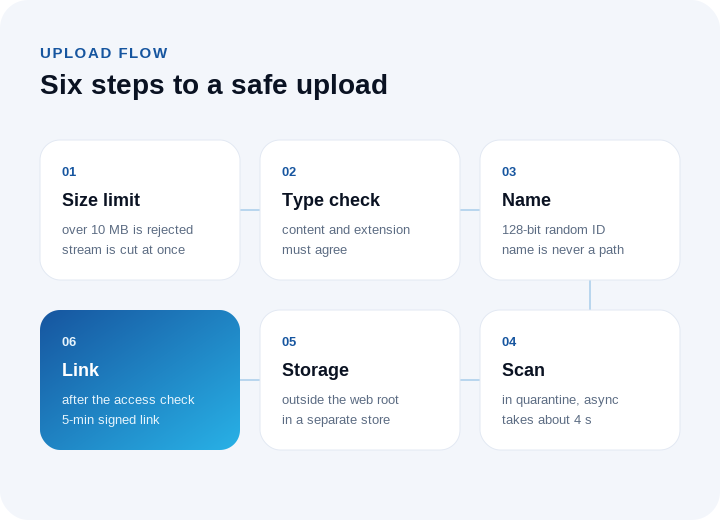
The flow has six steps, and order matters: cheap checks come first and expensive ones later, and a file is not considered "ready" anywhere until it has been verified.
- Size limit: If the limit is exceeded while the request body is being read, the stream is cut immediately; you do not wait to load the whole file into memory or onto disk.
- Type check: The content type is verified against an allowlist; the type and extension reported by the user are not proof on their own.
- Name generation: The file is stored under a random ID generated by the system; the name the user supplied is only a label shown on screen.
- Scanning: The file is scanned in a quarantine area and is not served to anyone until the result is in.
- Storage: A clean file is kept outside the application's web root, in a separate store.
- Link: After an access check, the file is served through a short-lived signed link.
Which File Types Should You Accept?
Only the ones you need. The rule should be "accept what is known and necessary," not "block the bad ones": a blocklist always misses one, while an allowlist starts closed.
The second principle is to verify the extension and the content together. The extension in a file name is trivial to change, and the type reported by the browser is written by the client. The server detects the real format from the structure of the file's first bytes and compares it with the extension.
| Declared extension | Detected content | Decision |
|---|---|---|
| PDF document | Accept | |
| .jpg | JPEG image | Accept |
| Image file | Reject; extension and content disagree | |
| .jpg | Executable content | Reject and log the event |
| report.pdf.exe | Double extension | Reject; the last extension is not on the allowlist |
| No extension | Unknown | Reject |
Office documents and other package-style formats need an extra validation layer; before accepting them, write down which inner contents count as valid. Bulk data files (spreadsheet uploads) are additionally validated row by row, which we cover in our CSV and Excel import guide.
How Do You Set Size Limits and Quotas?
A size limit caps a single file and a quota caps a user's or tenant's total; without both, a full disk is not an attack, just ordinary use. Set limits slightly above real usage and separately by file class.
| File class | Per-file limit | Extra limit |
|---|---|---|
| Image | 10 MB | At most 25 megapixels |
| PDF document | 20 MB | Page-count limit |
| Office document | 20 MB | Maximum size once opened |
| User total | 500 MB | Quota; warning when full |
The pixel limit closes a small trap: a 12,000 × 12,000 pixel image needs 144 million pixels × 4 bytes = 576 MB of memory when opened, even if the file itself is small. With a 25-megapixel limit, that is 25,000,000 × 4 = 100 MB.
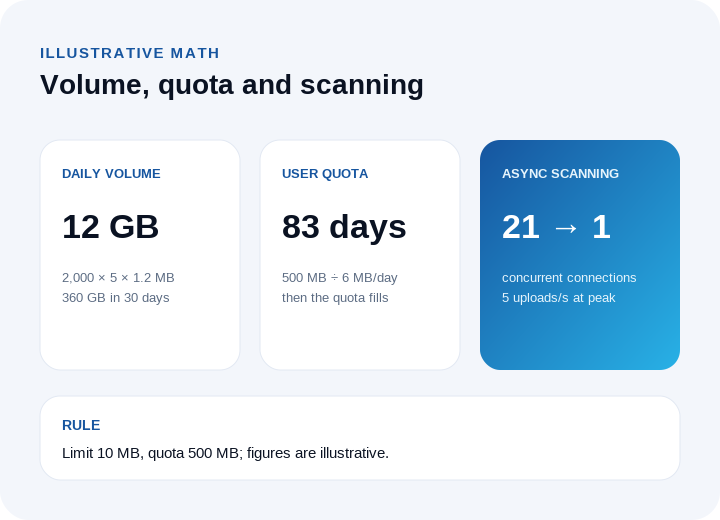
A volume plan, as an example: 2,000 users, 5 files a day, 1.2 MB on average. Daily volume is 2,000 × 5 × 1.2 MB = 12,000 MB = 12 GB (taking 1 GB = 1,000 MB), or 360 GB in 30 days. Each user adds 5 × 1.2 = 6 MB a day, so a 500 MB quota fills after about 500 ÷ 6 ≈ 83 days; at day 30 the average user holds 180 MB.
How Do You Secure File Names and Storage Location?
The name a user supplies is never part of a file path. A name can contain sequences that jump between folders or special characters, so the file is stored on disk under a random ID of at least 128 bits generated by the system, while the original name lives only in the database as a display field and is sanitized on output.
There are three storage options:
| Option | Pro | Con |
|---|---|---|
| Application server disk | Simple | Close to the web root; does not scale; hard to back up |
| Binary field in the database | Transactional integrity | Bloats the database; heavier backup and query load |
| Separate object store | Outside the web root, scales, separate access rules | Extra setup and management |
For most business applications, a separate object store with only a record in the database (ID, owner, type, size, hash, status) is the most robust balance. Files in the store are never opened to public access; access happens only through signed links the application generates. For encrypting stored data and managing keys, see our data encryption guide, and for a backup plan see our data backup guide.
How Do Scanning and Quarantine Work?
Scanning is done not while the file is being uploaded but afterwards, in the background. The upload request writes the file to a quarantine area and returns at once; a worker picks the job from a queue and the result is recorded.
The difference shows in numbers. Say an upload takes 200 ms, a scan takes 4 s, and at peak 5 uploads a second arrive. If scanning runs inside the request, each request stays open for 4.2 s, so concurrent connections are 5 × 4.2 = 21. In the asynchronous flow the request closes in 0.2 s: 5 × 0.2 = 1 connection. The scanning itself needs 5 × 4 = 20 concurrent workers at peak, but that work does not keep the user waiting.
A file has five states, and only the last one is servable:
- Uploaded: In quarantine, not yet processed.
- Scanning: The user sees "scanning"; the file cannot be opened.
- Quarantined: Malicious content found; access closed, an incident record opened, the user notified.
- Rejected: A type, size or content rule was violated.
- Clean: Passed the scan; can be served through a signed link.
If no scan result ever arrives, the file is not treated as clean; it moves to an error state and is retried.
How Do Signed Expiring Links and Access Checks Work?
A signed link is an address, signed by the server, that grants access to one specific file for a limited time; if the signature does not match or the time has passed, access is refused. Before generating the link, the application checks that the requesting user is authorized for that file; the link is issued only after that check.
- Lifetime: For example, 5 minutes.
- ID: At least 128 random bits. 2128 ≈ 3.4 × 1038 possible values means about 1.1 × 10²² years even at a billion guesses a second. A sequential ID in a system with 1,000,000 records can be swept at 1,000 attempts a second in 1,000 s ≈ 16.7 minutes; even capped at 100 attempts a minute it takes 10,000 min ≈ 6.9 days.
- Object-level authorization: Knowing an ID is not permission. The question "is this user the owner or in an authorized role for this file?" is asked every time a link is generated. We explain the role and permission model in our role-based access control guide.
- Response headers: Files are served as downloads, the browser is prevented from guessing content types, and files come from a separate domain that does not share the application's session cookies.
When the link works directly against the store, the file traffic does not pass through the application server. In the example, if each of the 12 GB of daily files is viewed 3 times, that is 36 GB a day your application server does not carry.
How Are Images and Metadata Processed?
Images are re-encoded after acceptance: the server decodes the image, scales it to the set size and writes a new file. This keeps hidden extra data from being carried along, brings every image to one format, and shrinks the file. In the example, a 3.2 MB photo becomes 0.9 MB: (3.2 − 0.9) ÷ 3.2 ≈ 71.9% smaller.
Re-encoding can also strip metadata. Photos can carry fields such as device information and location; whether you keep them and how you inform the user is a personal-data question and, under KVKK (Turkey's personal data protection law), should be settled with your legal counsel. For moving files with personal data into test environments, see our data masking guide.
How Do You Upload Large Files in Chunks?
Chunked upload splits a file into small parts, sends them separately and reassembles them on the server. When something fails, only the interrupted part is resent. A 200 MB file in 5 MB parts is 200 ÷ 5 = 40 parts.
Suppose each 5 MB transfer has a 2% chance of being interrupted (assuming independence). Sent in one piece, the chance of no failure is 0.9840 ≈ 44.6%; the average number of attempts is 1 ÷ 0.446 ≈ 2.24, so if every attempt ran to the end you would transfer at most 2.24 × 200 ≈ 449 MB (a failed attempt ends early, so the real figure is lower; this is an upper bound). With chunks, each part succeeds in about 1 ÷ 0.98 ≈ 1.02 attempts: 40 × 1.02 ≈ 40.8 parts ≈ 204 MB. Validation and scanning run on the reassembled file.
How Do You Manage Deduplication, Retention and Cost?
A content hash prevents the same content from being stored twice. When a file is uploaded, its content hash is computed; if a record with the same hash exists, no new copy is written and the new record points to the existing content. Deduplicate only within one tenant's or customer's records; across customers, "this file already exists in the system" can leak indirectly.
An illustrative cost calculation: storage ₺2/GB/month, egress ₺1/GB, every file viewed 3 times, storage billed on the month-end volume. If 360 GB is added each month, the sum of monthly volumes over 12 months is 360 × (1 + 2 + … + 12) = 360 × 78 = 28,080 GB-months.
| Item | No deduplication | 15% deduplication |
|---|---|---|
| Storage: 28,080 GB-months × ₺2 | ₺56,160 | ₺47,736 |
| Egress: 12 × 3 × 365 = 13,140 GB × ₺1 | ₺13,140 | ₺13,140 |
| Yearly total | ₺69,300 | ₺60,876 |
15% deduplication saves ₺56,160 × 0.15 = ₺8,424 on storage. As for retention: how long each file is kept and when it is deleted is a legal and financial decision; before hard-coding a period into the software, consult your legal counsel and your financial advisor (certified accountant). Deletion should be logged too; for tiering and deleting old data, see our data archiving guide.
We recommend reading: What is a document management system (DMS)? A guide to versions, permissions, search and payback
How Do You Measure Upload Security?
Three indicators are enough, and all come from daily logs. Say there are 10,000 uploads a day.
- Rejected upload rate: 150 ÷ 10,000 = 1.5%. A sudden jump points either to an interface bug or to probing traffic.
- Quarantine rate: 12 ÷ 10,000 = 0.12%.
- "Scanning" time: p95 target ≤ 10 s; if it is exceeded, add workers to the scan queue.
How Does a Secure Upload Design Pay Back?
An illustrative assumption: design and setup of 15 person-days × ₺9,000 = ₺135,000. Without controls, say the chance of a file-exposure incident is 10% a year with a ₺1,200,000 loss; expected loss is ₺120,000. With controls the chance falls to 2%: ₺24,000. The difference is ₺96,000. Add the deduplication saving of ₺8,424 and subtract yearly scanning and operating cost of ₺18,000: ₺96,000 + ₺8,424 − ₺18,000 = ₺86,424 net yearly benefit, or ₺7,202 a month. Payback: ₺135,000 ÷ ₺7,202 ≈ 18.7 months.
Sensitivity: if the drop in incident chance is only half, from 10% to 6%, the difference is ₺48,000; net benefit is ₺48,000 + ₺8,424 − ₺18,000 = ₺38,424 and payback is ₺135,000 ÷ (₺38,424 ÷ 12) ≈ 42.2 months. The incident chance is an estimate; recalculate with your own data.
What Are Common File Upload Mistakes?
- Trusting only the extension: The extension comes from the user; validate the content on the server.
- Using the user's file name in a path: A name is a label, not a path.
- Storing files in the web root: A folder reachable by direct address bypasses access checks.
- Treating an ID as permission: If anyone with the address gets the file, there is no authorization.
We recommend reading: How to generate PDF documents and labels from software
Secure Custom Software Development with İnovabil
At İnovabil our focus is building firm-specific software from scratch: custom software, ERP, CRM, e-commerce, web, mobile and integration. In the systems we build, role-based permissions, audit logs and secure hosting are core capabilities; for a module that accepts uploads, we suggest writing these down together with the flow above during requirements analysis.
We built CRM, purchasing and mobile for Avcılar İnşaat; a purchasing system for İZBAN; logistics and shipment planning with wholesale order management for Karyak; and warehouse management plus a complaint and support management system for Sleepy. Share a short summary of your upload needs and we will pin down file types, sizes and access rules together.
We recommend reading: Our software development process: step by step from analysis to launch
Frequently Asked Questions
How do you make file upload secure?
By setting size and quota limits, validating allowed types against content, storing files under random IDs outside the web root, scanning them in quarantine, and serving them through a short-lived signed link after an access check. No single control is enough.
Is checking the file extension enough?
No. An extension is easy to change. The server should detect the file's real format from its content, compare it with the extension, and reject the file if they disagree.
How long should a signed link last?
As short as possible; 5 minutes in the example. The link lives just long enough to open the file. Tune the period to how your users actually work.
Should scanning happen during the upload?
Usually not. The file is written to quarantine and the request closes at once, while scanning runs in the background. In the example, concurrent connections drop from 21 to 1 and the user sees a "scanning" state.
How long should uploaded files be kept?
It depends on the file type and legal obligations; software cannot decide that. Put the period in writing with your legal counsel and financial advisor, then automate deletion and keep a record of it.